
Sign in with Google Classroom
Sign in with Google Classroom
Do you use Google Classroom? Now you and your students can sign into your Scholastic Classroom Magazine’s digital resources using your school’s own Google Classroom accounts. Just follow the steps below! (Click for information on integrating with another LMS.)
Step 1. Register your account.
Step 1. Register your account.
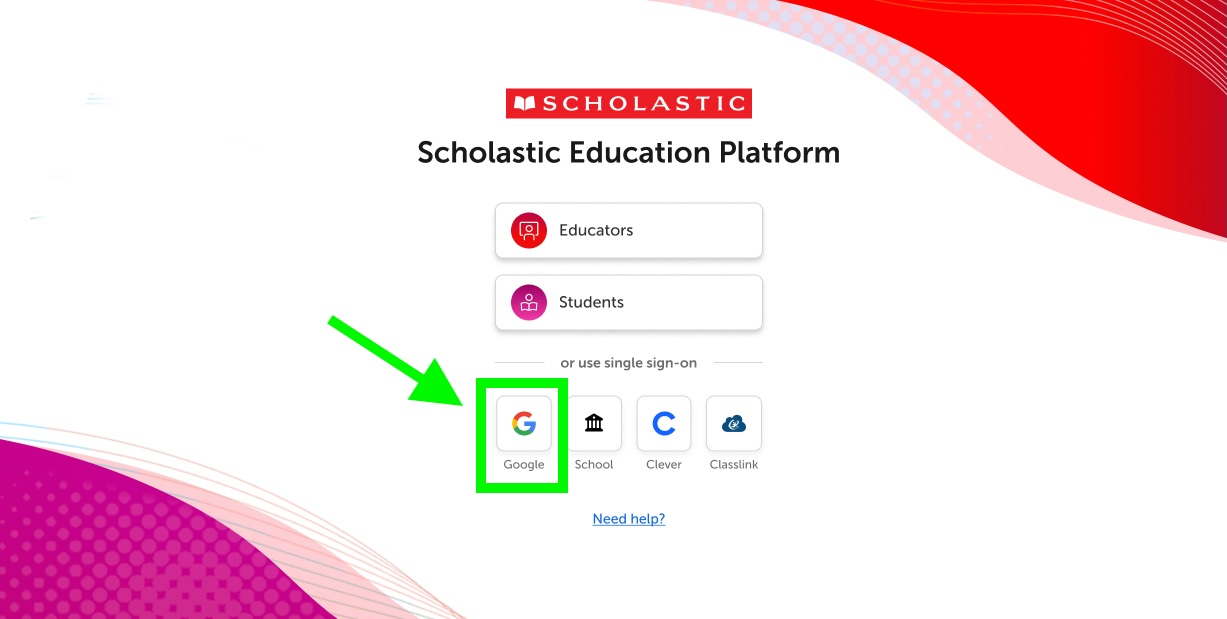
Go to platform.scholastic.com and click “Google” to register with your school’s Google account. Enter or select the Google account you use with your school.
Step 2. Import your classes.
Step 2. Import your classes.
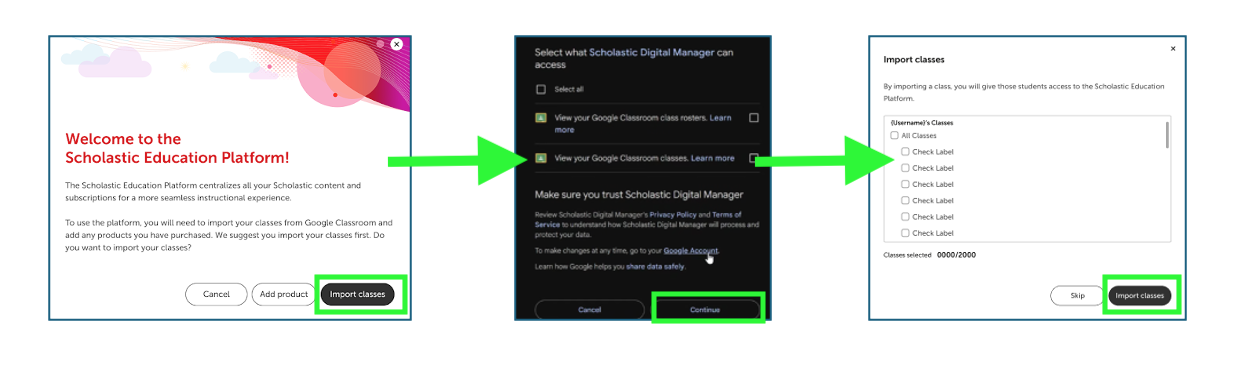
Select “Import classes” to seamlessly import your class roster from Google Classroom. Follow instructions to allow Scholastic to view your classes and rosters, and select specific class(es) to import.

Step 3. Enter your access code.
Step 3. Enter your access code.
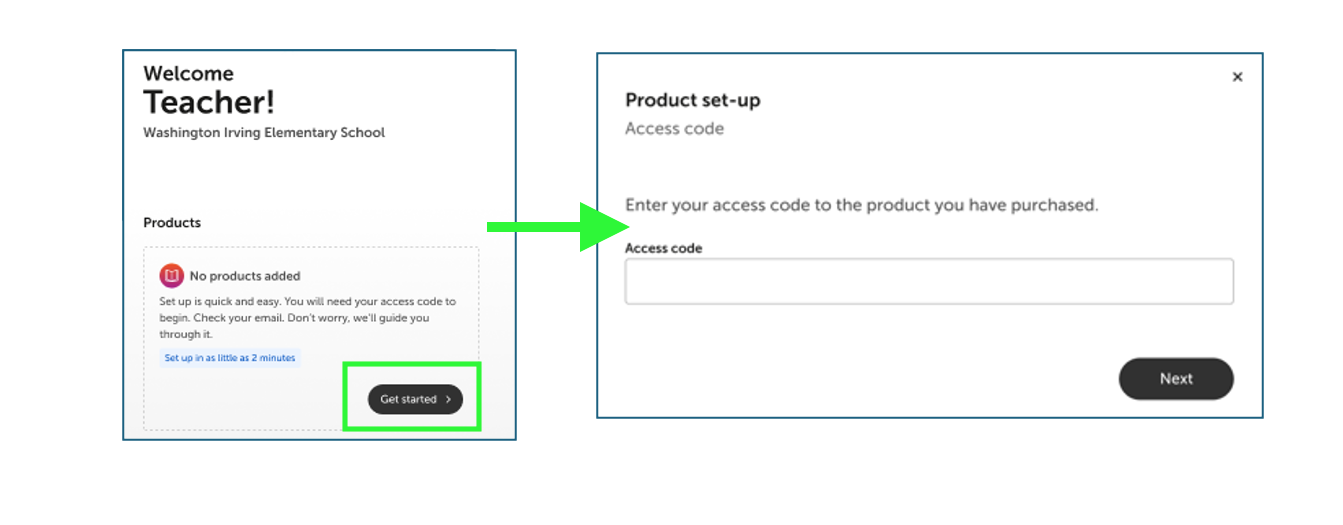
Your magazine subscription comes with an access code to activate your account online. (This code can be found on the cover of your Teacher’s Guide throughout the school year.) Click here to enter your access code.
Step 4. Enjoy!
Step 4. Enjoy!
Your students now have access to your magazine! You and your students can use your school’s own Google credentials to access your magazine website in the future—simply click “Google” to log in.
Class changes? No problem!
Class changes? No problem!
To import another class, resync a class if a student joins your Google Classroom list, or manage student access to specific products:
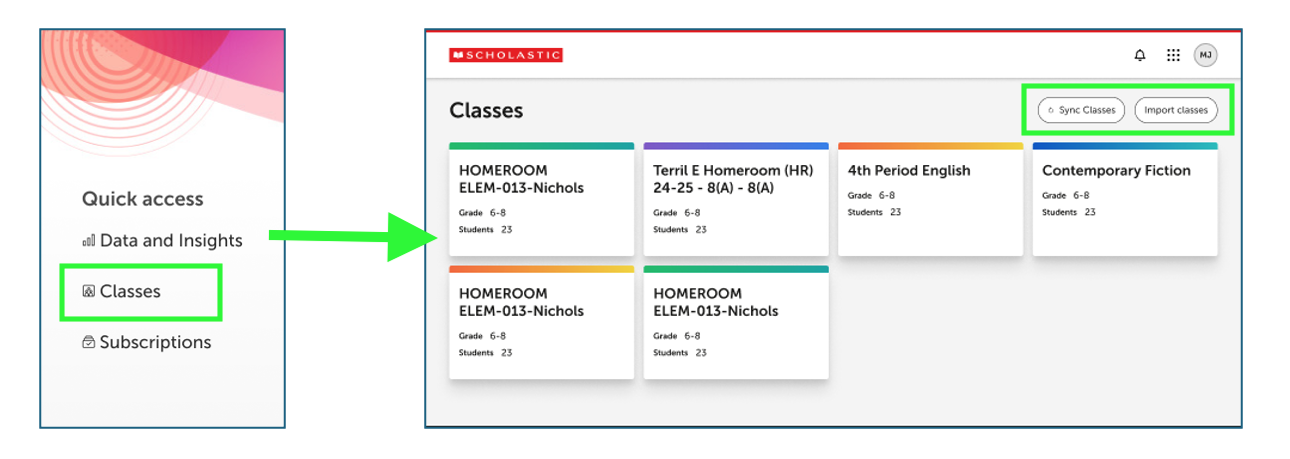
Log into your magazine website, and select “Return to Scholastic Education.” Click “Classes" on the right-hand side of the screen. Click "Import classes" to add a new class, or "Sync Classes" to update an existing roster.
Have a co-teacher?
Have a co-teacher?
Each co-teacher can separately follow the steps above to:
1. Register on the magazine website, using their own Google Classroom account
2. Import your shared class(es) from Google Classroom
Having trouble?
Having trouble?
We can help! Click here for support.
(Click for information on integrating with another LMS.)